Guide
From site timesheets to payroll without the retyping
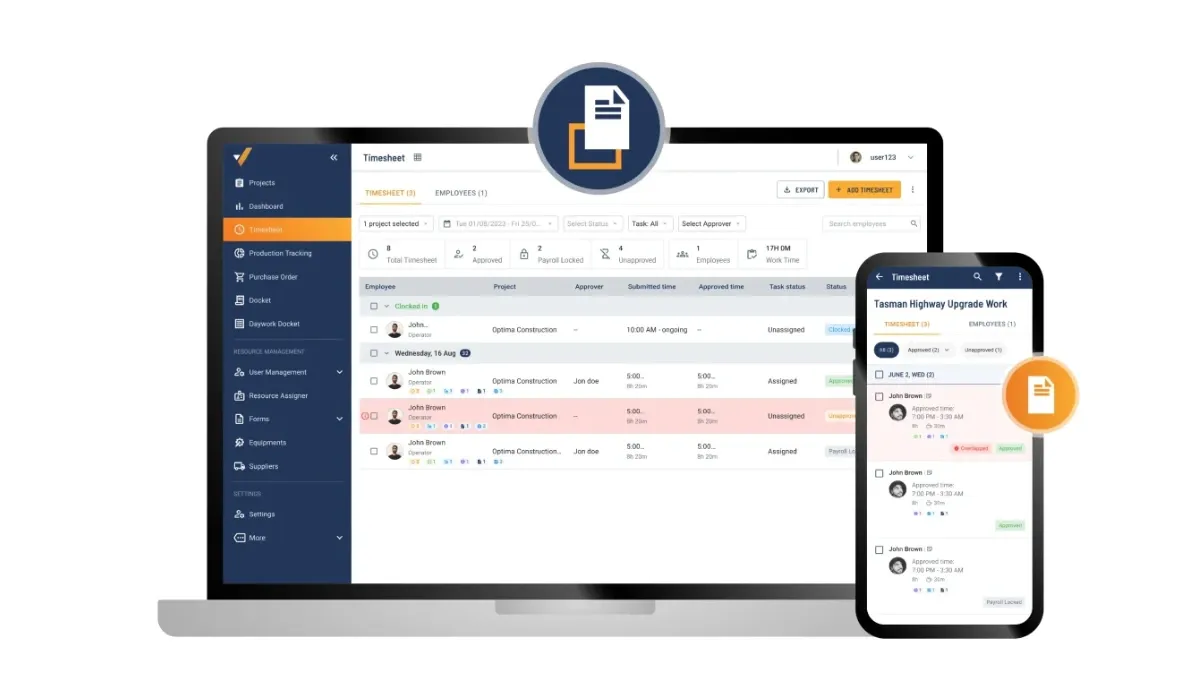
Capture hours on site as the work happens, have a supervisor approve them once, then send approved hours to payroll in your accounting system, with pay rules set up by employment type.
- Published
- Reading time
- 2 min read
Why paper timesheets cost more than they look
Paper timesheets are familiar and everyone understands them. The cost shows up later: someone in the office chases missing sheets, reads the handwriting and types every hour into payroll. Mistakes in pay upset your crew, and labour costs reach the job long after the work is done.
Step 1: capture hours on site
Get hours recorded where the work happens, on the day it happens. A good setup lets each worker:
- clock in and out against the right project
- record breaks
- note the equipment they were on, so the hours also count as plant costs.
If some of the crew do not want an app on their own phone, a shared tablet at the site office does the job. Until you are ready to move off paper, a weekly construction timesheet template keeps the same fields in one place.
Step 2: approve once, close to the work
Pick an approver for each project, usually the supervisor or project manager who knows who was on site. Approving in bulk on a phone or tablet keeps it quick, and approving one by one is there for the odd query. Let workers see the status of the timesheets they have submitted, so problems are sorted before pay day.
Step 3: set up pay rules once
Wages, salary, casual and subcontractor workers are paid in different ways. Set up the pay rules for each employment type once, with your payroll adviser where you need one, so approved timesheets are not reworked by hand each week.
Step 4: send approved hours to payroll and the job
Approved hours should go to payroll in your accounting system without being typed in again. The same hours are your labour costs, so they should land against the project and cost code at the same time. That is how you see what labour is costing each job while it is still running.
Step 5: roll it out gradually
Start with timesheets on one or two jobs, then add the rest of the crew. Have someone who knows the system help set up your pay rules and train the field and office staff.